 Savoclip
Why can't I save a TikTok video?
The usual answer to “why can’t I save a TikTok?” is that the creator turned off downloads. When a creator does that, the Save video option disappears from the share menu on all of their posts, and only they can turn it back on.
Other reasons are a private account or video, a teen creator whose downloads are off, or a LIVE instead of a regular post. Below you’ll find each reason, what you can do instead, and how creators control downloads.
TikTok’s own help pages call the option Save video in one place and Download in another, so your app may show either one. Photo posts show Save photo.
Why can’t I save a TikTok? The usual reasons
| Reason | Can you fix it? |
|---|---|
| The creator turned off Video downloads | No. Only the creator can turn it back on. |
| The account or video is private | No. Private videos can’t be downloaded. |
| The creator is 13 to 15 | No. Their downloads stay off. |
| The creator is 16 or 17 and hasn’t turned downloads on | No. Only the creator can change it. |
| It’s a LIVE, not a regular post | No. Only the host can download the replay. |
| It’s your own post | Yes. Turn on Video downloads. |
The creator turned off downloads
Every creator chooses whether other people can download their posts. TikTok’s Help Center is direct about it: if you don’t have the option to download a video, the creator doesn’t allow it.
The setting covers the whole account. When it’s off, people can’t download any of that creator’s posts, old or new. That’s why you can save one creator’s videos but not another’s. It isn’t a problem with your phone.


The account or video is private
TikTok says you can’t download videos that are private. Private accounts also have downloads turned off, and the owner can’t turn them on unless they switch the account to public.
The creator is a teen
TikTok has stricter download rules for teen accounts:
- Ages 13 to 15: downloads are off and can’t be changed, even on a public account.
- Ages 16 to 17: downloads are off by default. A teen with a public account can turn them on.
You can’t see someone’s age, so you won’t always know this is the reason. Age rules can also differ by country. TikTok says its teen settings depend on age and local laws, and its Canadian newsroom lists the youngest group as 14 to 15 in Quebec.
It’s a LIVE
TikTok’s download steps are for posts. For LIVE, TikTok keeps replays for the host, who can view and download them for 30 days. The Help Center doesn’t describe a way for viewers to save someone else’s LIVE.
It’s your own post
You can usually save your own posts. If the option is missing on your own video, TikTok’s troubleshooting steps say to turn on Video downloads. The steps are in the creator section below.
The option is there, but saving fails
If you get a “download failed” error, TikTok suggests checking your internet connection and free storage, then clearing the app’s cache. If the video saved but you can’t find it, look in your downloads folder or the TikTok album in your gallery.
On iPhone, check that TikTok is allowed to use Photos in your phone’s Settings. Our guide on saving videos to Photos on iPhone covers the rest. If you have trouble sharing in general, TikTok also suggests updating to the latest version of the app.
What you can do instead
When Save video isn’t there, you still have options:
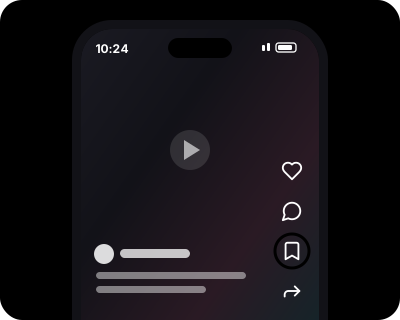
- Add it to Favorites. Tap the Favorite button below the comment button. The video goes into your Favorites, which only you can see, so you can rewatch it later in the app.
- Share the link. Turning off downloads doesn’t stop sharing. Tap Share and pick an app or copy the link. TikTok confirms people can still share a link to a video when downloads are off.
- Ask the creator. Leave a comment or send a message saying why you’d like a copy. They may send you the file, turn downloads on, or say yes as long as you credit them.
- Use a web downloader for public videos. A tool like Savoclip works from the link of a public video. Keep that copy for your own viewing.
If a creator turned downloads off, that was their choice. The respectful move is to ask first, or keep any copy to yourself. Don’t re-upload it, and never post it as your own. For the rules in general terms, read is it legal to download social media videos? It’s general information, not legal advice.
Why saved TikToks have a watermark, and how to save one without it
When you save a video in the TikTok app, the file can include the TikTok watermark and the creator’s username. TikTok says this depends on the creator’s settings.
Savoclip saves public TikTok videos without the TikTok watermark. It works in any browser, with no app and no sign-up, and nothing is stored on our server.
- In TikTok, tap Share on the video and copy its link.
- Paste the link into our TikTok video downloader.
- Choose HD, SD or MP3 (audio only).
- Save the file.
It only works with public posts. It can’t see private accounts. A file without the watermark doesn’t show who made it, so credit the creator yourself if you share the video with their permission.
For creators: how to turn TikTok downloads on or off
- In the TikTok app, tap Profile at the bottom.
- Tap the Menu ☰ button at the top.
- Tap Settings and privacy.
- Tap Privacy.
- Tap Downloads.
- Turn Video downloads on or off.

TikTok’s troubleshooting page shows Downloads directly under Settings and privacy, so you may need to scroll to find it in some app versions.
Here’s what the setting changes:
- Off: people can’t download any of your posts, past or future. They also can’t turn your videos into live photos or GIFs, or share them straight to some other apps.
- Links still work: people can still share a link to your video, even with downloads off.
- Old downloads stay: copies saved while downloads were on stay on those people’s devices.
- Private or under 16: the setting is off and you can’t turn it on. If you’re 16 or older and switch to a public account, you can choose.
Can you turn off downloads for one video?
TikTok’s Help Center describes Video downloads as a single setting for your whole account. It doesn’t describe a download switch for one post.
The closest per-post control is who can see it:
- In the TikTok app, tap Profile and open the post.
- Tap the More options (…) button on the side of the post.
- Tap Privacy settings. You may need to swipe left to find it.
- Choose Friends or Only you.
Sources
- TikTok Help Center: Download content
- TikTok Help Center: Manage video downloads
- TikTok Help Center: Teen privacy and safety settings
- TikTok Help Center: Sharing on TikTok
- TikTok Help Center: Favoriting content on TikTok
- TikTok Help Center: TikTok LIVE replays
- TikTok Help Center: Post privacy settings
- TikTok Help Center: I can't share videos
- TikTok Newsroom: Furthering our safety and privacy commitments for teens on TikTok (2021)
- TikTok Newsroom Canada: Supporting families with new Family Pairing features
Checked on November 17, 2026. Apps change often; if something here is out of date, tell us at [email protected].