 Savoclip
Instagram Reel downloaded without sound? Why it happens and how to fix it
If your Instagram Reel downloaded without sound, there are two usual reasons: Instagram’s own Download button left out licensed music, or the tool you used saved only the picture and not the audio. The fix is to check that the Reel plays with sound on Instagram, then download it again with a tool that keeps the audio.
Sometimes the file is fine and your phone is muting it. And if Instagram removed the sound from the Reel itself, no download can bring it back. This guide helps you tell which case you’re in.
Why your Instagram Reel downloaded without sound
| Cause | How to tell | Fix |
|---|---|---|
| Instagram’s Download button dropped licensed music | You used Download in the Instagram app, and the Reel uses a song | Download it with a tool that keeps the audio, or save the sound inside Instagram |
| The sound was removed on Instagram | The Reel shows Audio unavailable or plays silent in the app | Nothing can restore it. Ask the creator for their file |
| The tool saved only the video stream | The Reel has sound on Instagram, but the file is silent in every player | Download again with a tool that merges video and audio |
| Your phone or player is muted | Other videos are silent too, or another player has sound | Check the mute button, the volume and Silent mode |
Before you download, play the Reel in Instagram for a few seconds with the volume up. If you can’t hear it there, you won’t hear it in the file.
Why Instagram’s Download button saves Reels without music
Instagram lets you save Reels to your phone from the app. Open the Reel, tap the Sharing options icon, then tap Download. This only works in the Instagram app on iPhone, iPad and Android, not on a computer.
The catch is music. Instagram says that when you download your own Reel, any music you added from the Instagram music library isn’t saved. When Instagram opened public Reel downloads to everyone in 2023, TechCrunch and Engadget reported the same rule for other people’s Reels: if a Reel uses licensed music, the download has no sound. Only Reels with original audio keep it.
A few more rules from Instagram’s Help Centre:
- Only Reels from public accounts can be downloaded, and the creator can turn downloads off. For public accounts of people under 18, downloads are off by default.
- If a Reel uses someone else’s original audio, that audio is included only when the Reel it came from can be downloaded too.
- Downloaded Reels carry an Instagram watermark, the creator’s username and the audio credit. Instagram says they can’t be used for commercial purposes.
So a silent file from the Download button doesn’t mean anything is broken. Instagram left the music out on purpose.
Was the sound removed on Instagram? (“Audio unavailable”)
Before you blame the download, play the Reel in the Instagram app. If it’s silent there too, or you see Audio unavailable, the sound was removed or blocked at the source.
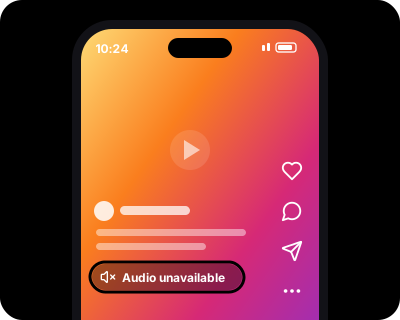
Instagram’s Help Centre lists these reasons you might not hear the audio on someone’s Reel:
- The audio isn’t available in your country or region.
- The creator didn’t have access to that audio, so it was muted.
- The track was taken down, or the artist or label has technical issues.
- Instagram’s licensing agreements with rights holders changed.
- A rights holder blocked the Reel because it contains material they own.
Account type matters too. Instagram says its licensed music library is for personal, non-commercial use, and certain business accounts don’t have access to it. Licensed music may also be missing in some countries or regions. That’s why many brand Reels use original audio or royalty-free tracks, and why a song you hear in one country can be silent in another.
Why some download tools save a Reel with no audio track
Instagram often sends a Reel’s picture and sound as two separate streams, especially for the sharper, higher-quality versions. A tool that grabs only the picture stream gives you an MP4 with no audio track at all. It looks like a normal video, but there’s simply no sound inside.
To check, play the file in a different app or on a computer. If no player gives you sound, the file has no audio track. Download it again with a tool that combines both streams.
Check your phone before you download again
If the file plays with sound somewhere else, the problem is your phone or player, not the file.
iPhone
- Play the video and press the volume up button.
- Tap the video to show the controls, and check that the mute (speaker) button isn’t switched on.
- Turn off Silent mode. Flip the Ring/Silent switch toward the front so no orange shows, press and hold the Action button if it’s set to Silent mode, or tap Silent mode in Control Center. Which one you have depends on your iPhone model.
- Check that the sound isn’t going to Bluetooth earbuds or a speaker.
Apple says audio apps such as Music, and many games, still play sound in Silent mode. Not every app behaves the same way, though, so it’s worth ruling out. If you’re moving the file into Photos, see how to save a downloaded video to Photos on iPhone.
Android
- Play the video and press the volume up button. While media plays, this changes the media volume, which is separate from your ringtone volume.
- In your sound settings, check the media volume slider. Menu names differ by phone and Android version.
- Check that the sound isn’t going to Bluetooth earbuds or a speaker.
- Open the file in a different video player app.
How to download an Instagram Reel with sound
First make sure the Reel plays with sound in Instagram. Then:
- In Instagram, tap the Sharing options icon (the paper plane) on the Reel, then tap Copy link.
- Open our Instagram Reels downloader with audio in any browser and paste the link.
- Choose HD to get one MP4 with picture and sound. Savoclip uses Instagram’s ready-made file when there is one, and joins the separate video and audio streams when there isn’t. Joining them takes a few extra seconds.
- Or choose MP3 audio if you only want the sound.
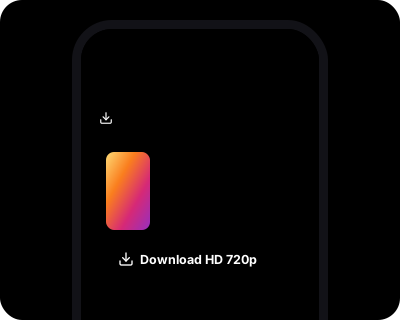
Savoclip needs no app and no sign-up. It only works with public Reels, and nothing is stored on our servers. Download only what you own or have permission to use, because the music in a Reel belongs to its rights holders. Our guide on whether it’s legal to download social media videos explains the basics.
Save a Reel’s audio inside Instagram instead
If you only want to reuse a sound in your own Reels, you may not need a download at all.
- Open the Reel and tap the audio name below the creator’s name.
- On the audio page, tap Save audio. The label or icon can look different in your app version.
- When you’re ready to make a Reel, open that audio page again and tap Use audio.
Saving audio keeps it inside Instagram. It doesn’t put a file on your phone, and you can’t play it in other apps. If you need an actual sound file, the MP3 audio option above gives you one. Use it only for audio you have the right to use.
If the sound was removed at the source
If a Reel is silent on Instagram, the sound isn’t there to download. No downloader, Savoclip included, can bring it back.
What you can do:
- Ask the creator for their original file. They may still have a copy with sound.
- Use the audio credit on the Reel to find the song’s name, then listen to it on a music service.
- If it’s your own Reel, tap Audio unavailable → Replace audio and pick another track from Instagram’s library. Instagram lets you replace a muted track only once.
Sources
- Instagram Help Centre: Who can download your Instagram reels
- Instagram Help Centre: Manage reels on Instagram
- Instagram: Reels feature page
- Instagram Help Centre: Problems with audio on Instagram
- Instagram Help Centre: Access to the licensed music library on Instagram
- Instagram Help Centre: Replace muted audio on your Instagram reel
- Instagram Help Centre: Find and use trending audio on Instagram
- TechCrunch: Instagram now allows anyone to download public Reels (November 2023)
- Engadget: Instagram makes public Reels downloadable for everyone (November 2023)
- TechRadar: How to save and share music from Instagram Reels
- Apple Support: Silence iPhone
- Apple Support: View photos and videos on iPhone
- Android Help: Change volume and sounds
Checked on November 17, 2026. Apps change often; if something here is out of date, tell us at [email protected].